This article is intended for: Contributors in the Operational Budget.
Use this article after: gaining access to an Operational Budget and need to submit new Position Requests as part of the Request Round.
Note: You can select any image below to zoom in.
Funding Packages are requests for new positions in Personnel Budgeting while simultaneously requesting Operational Budgeting Account amounts. To begin requesting a new Funding Package, navigate to the Operational Budget for this fiscal year:
- Select the tab named Funding Packages.
- To begin the funding package creation, select $ New Funding Package.
Step 1: General Information 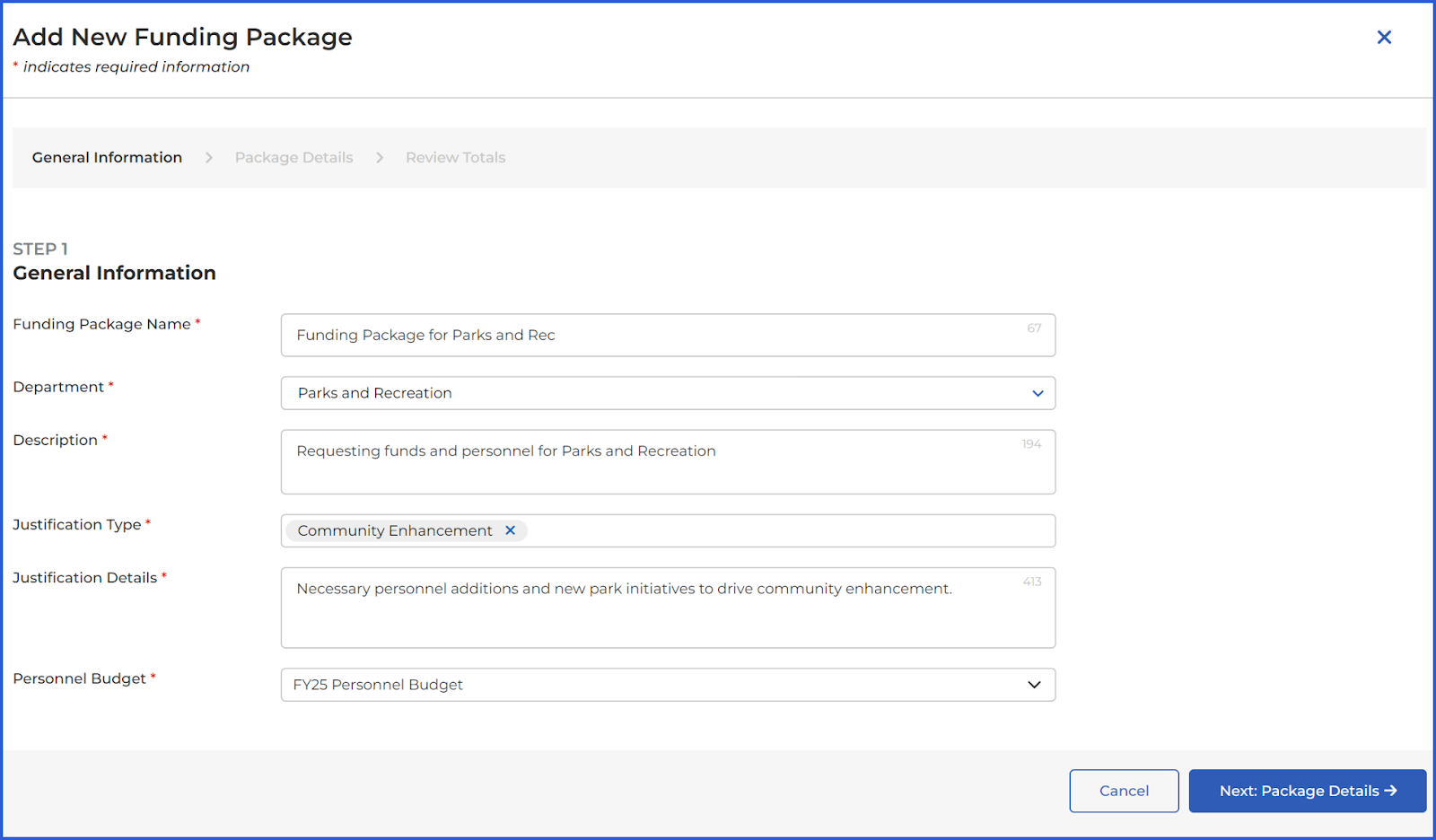
- Enter a Name for this Funding Package
Select the Department for this Funding Package in the drop-down menu.
Note: The department and division data can be edited after the funding package has been submitted.
- Enter a Description.
- Select a Justification Type from the drop-down menu. Note that you can select multiple Justification Types, or add a new one at the bottom, select +Add Justification Type.
- Enter Justification Details or Notes
- Select the Personnel Budget to connect if applicable. This selection is used to request personnel for this funding package.
When this form is complete, select Next: Package Details to continue.
Step 2: Add Funding Package Details
Attachments
Select + Add Attachment to upload a file from your computer.
File types can include PNG, JPG, JPEG, PDF, DOC, DOCX, XLS, XLSX files under 20MB.
Adding Accounts for Revenues and Expenses
In the Revenues and Expenses drop-downs, select + Add Account at the bottom left to search for an Account ID.
- Select + Add Account to open the Account ID search box.
- Type in the search box at the top to search across all columns.
- To the right of the desired Account, click Select to confirm the Account ID
Selecting the Account will automatically create an Itemization for this funding package. Enter the Quantity and Unit Cost for this funding package. That Quantity and Unit cost are multiplied together to calculate the Account total, as shown in the screenshot below.
Note: If you wish to select a different Account ID, you can delete the itemization and the account to select a new one. Nothing has been submitted yet, so while you are working in the Funding Package you can safely add and delete itemizations on this screen.
Requesting Personnel
In the Personnel drop-down, you can optionally include a Personnel Request to automatically add a Vacancy in the Personnel Budgeting module after approval.
- Select +Add Vacancy
- In the New Vacancy pop-out, select the Job Title from the drop-down list.
- Note that the Job Titles in the drop-down come from Personnel Budgeting, so contact someone with Editor access in the Personnel Budget for more information on available jobs.
- Select the Department/Division.
- Select the Initial Step. This will determine the starting step of the new hire in their Wage Schedule.
- Note that these Steps come from the Personnel Budgeting module, so contact someone with Editor access in the Personnel Budget for additional information or instructions.
- Enter the FTE. 1 = one full time equivalency.
When the form is completed, select Next Step: Wages, Additional Pay and Benefits to continue.
Wages, Additional Pay, and Benefits
The Wages, Additional Pay, and Benefits page will already be populated with the new personnel position’s starting wages and additional pay options. These are populated from the Personnel Budgeting module and will contain Account IDs as well if the Allocations tab was completed in Personnel Budgeting.
- Confirm that wages are accurate. Note that the wages come from the Initial Step and Job Title selected for this request.
- Adjust any account IDs or change the percentage split between multiple accounts. Select the +plus icon to add a new Account. Percentages must equal 100.
- Review the Additional Pay and Benefits options. Use the drop-down to change the option or select the - dash icon to remove the option entirely.
Review and Create the Funding Package
On the Review page, review the total Revenue, Expenditures, and Personnel amounts. Select Create to create the Funding Package.
Have more questions or need assistance?
Submit a Request