This article is intended for: ACFR teams in Disclosure Studio.
Use this article when: You want to upload new data to Disclosure Studio
Learn how to upload the ACFR Trial Balance & Budget data file on Disclosure Studio. This guide will walk you through the simple steps to upload data files for your financial reporting.
Interactive Guide
Step by Step Guide
1. Navigate to Disclosure Studio.
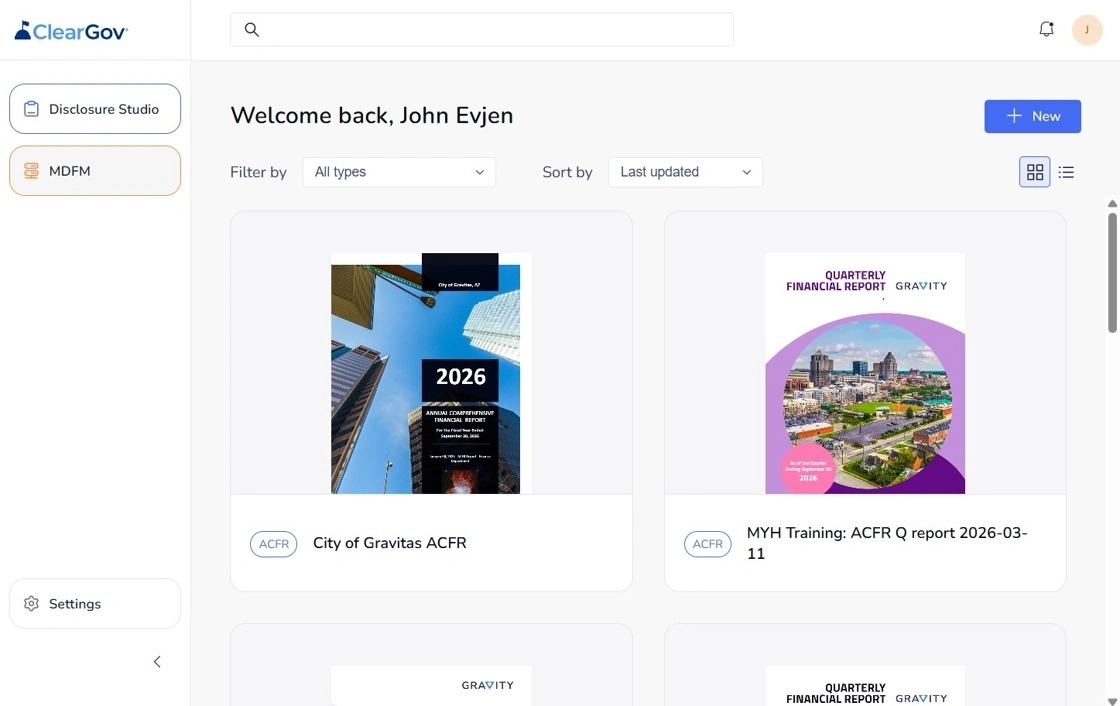
2. Click "MDFM".
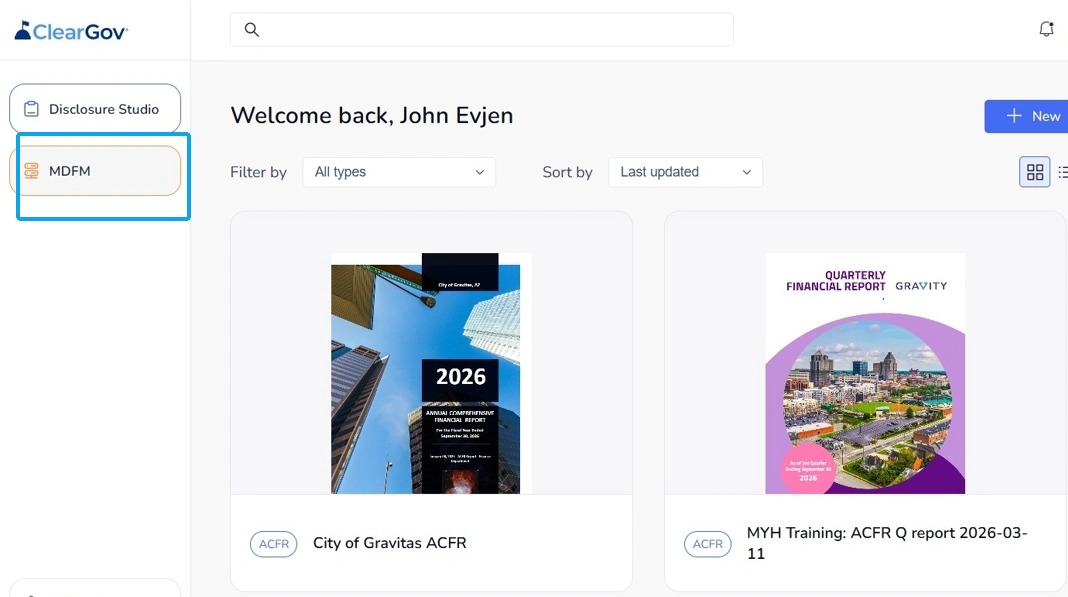
3. Click "Upload".
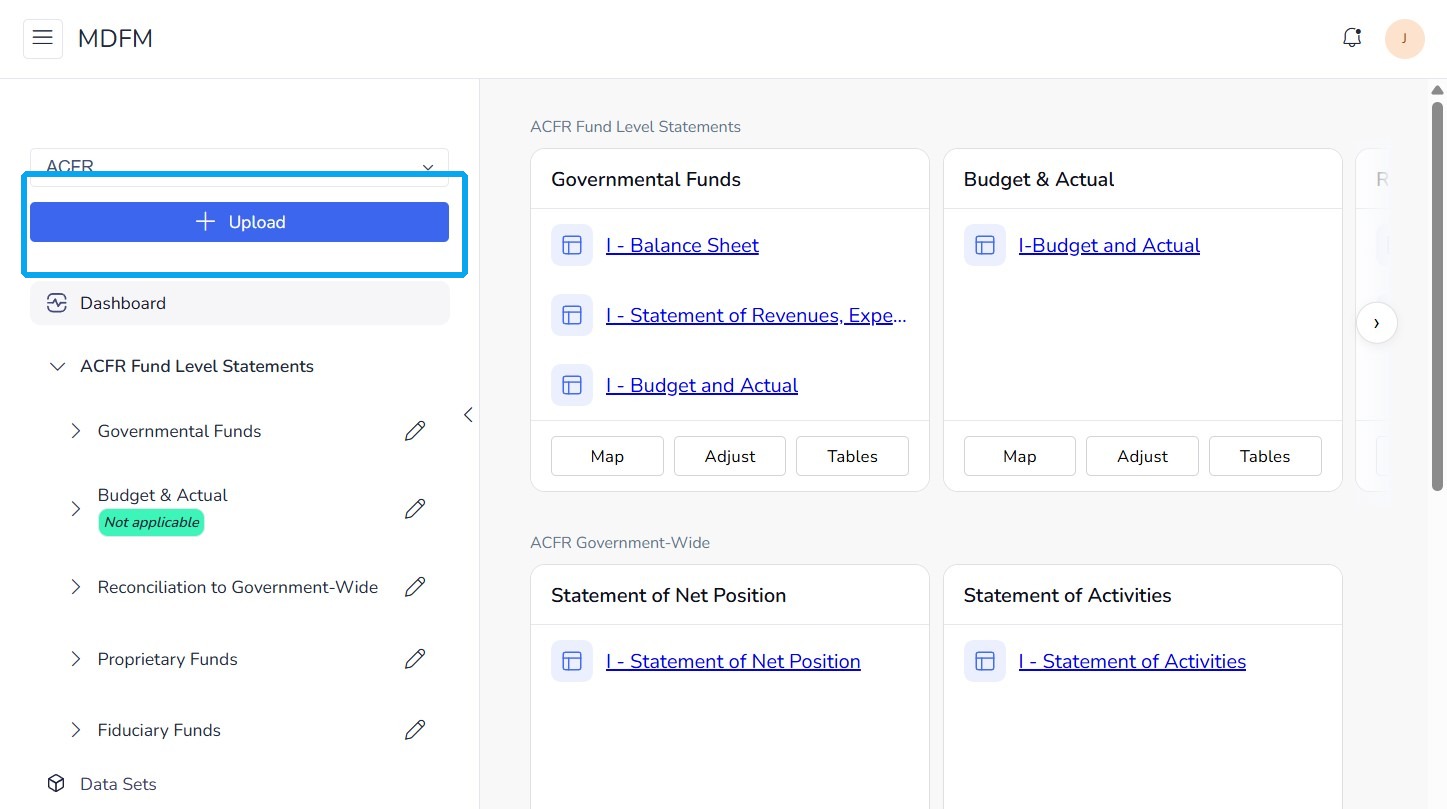
4. Click the Operation field and select your ACFR data file upload.
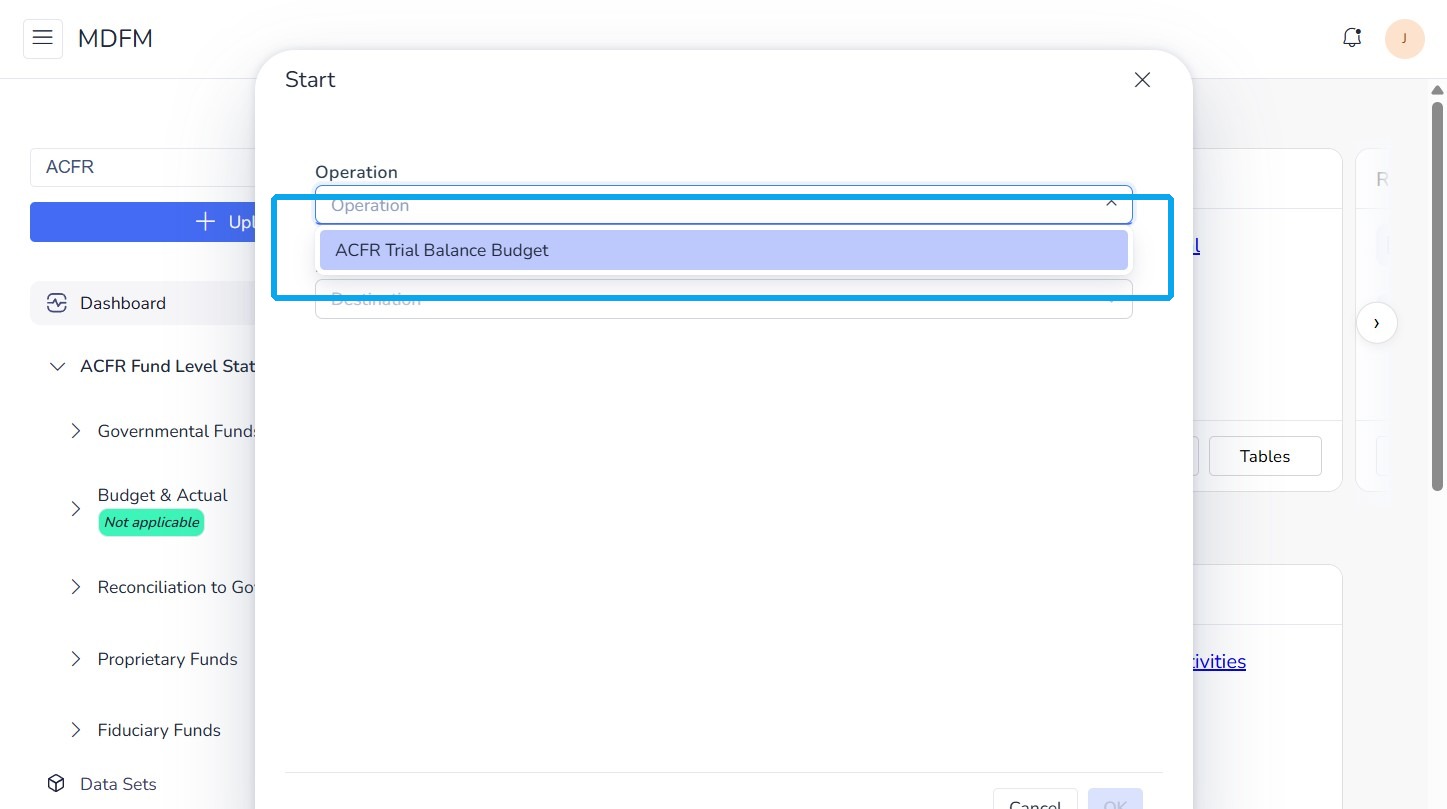
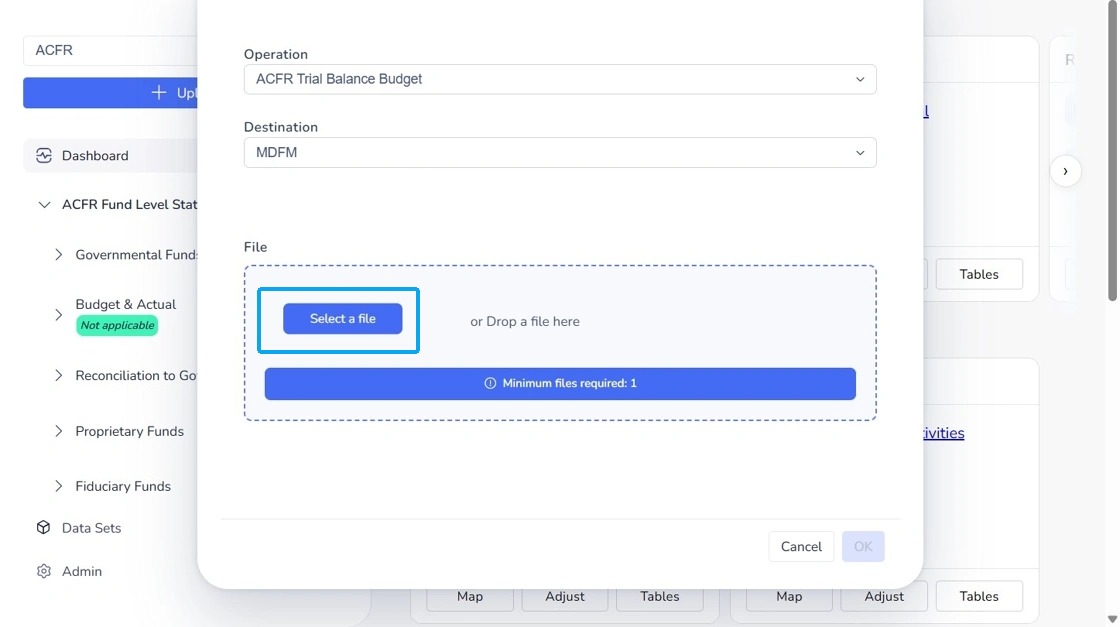
5. Click "Select a file" to find your ACFR data files. You may have multiple files to upload. This will be decided at implementation.
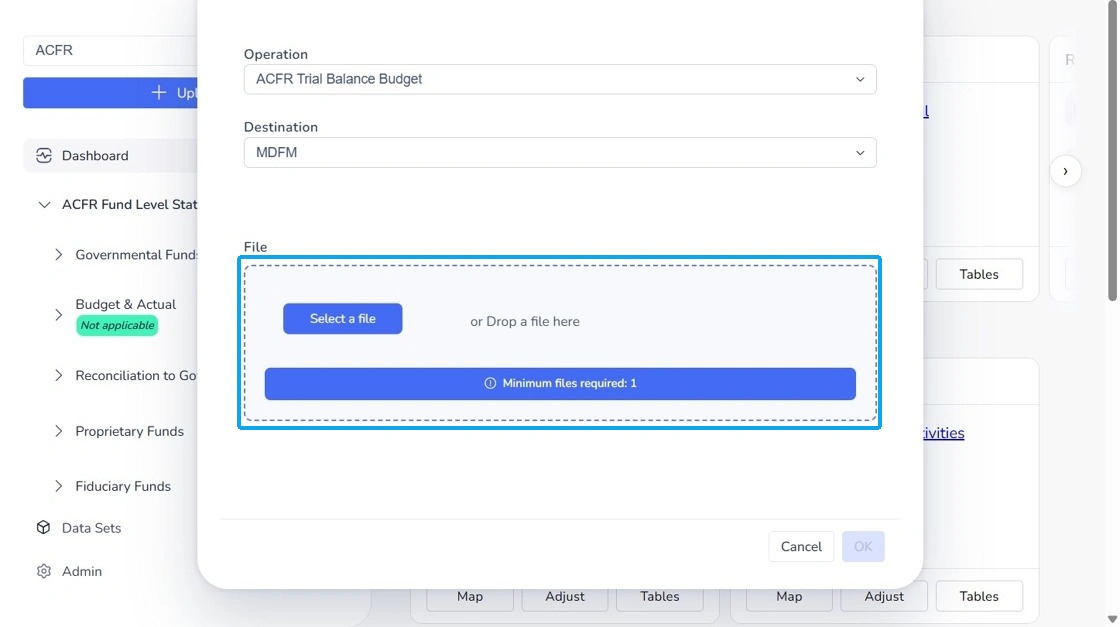
6. Alternatively, you can drag and drop the files in the drop box highlighted.
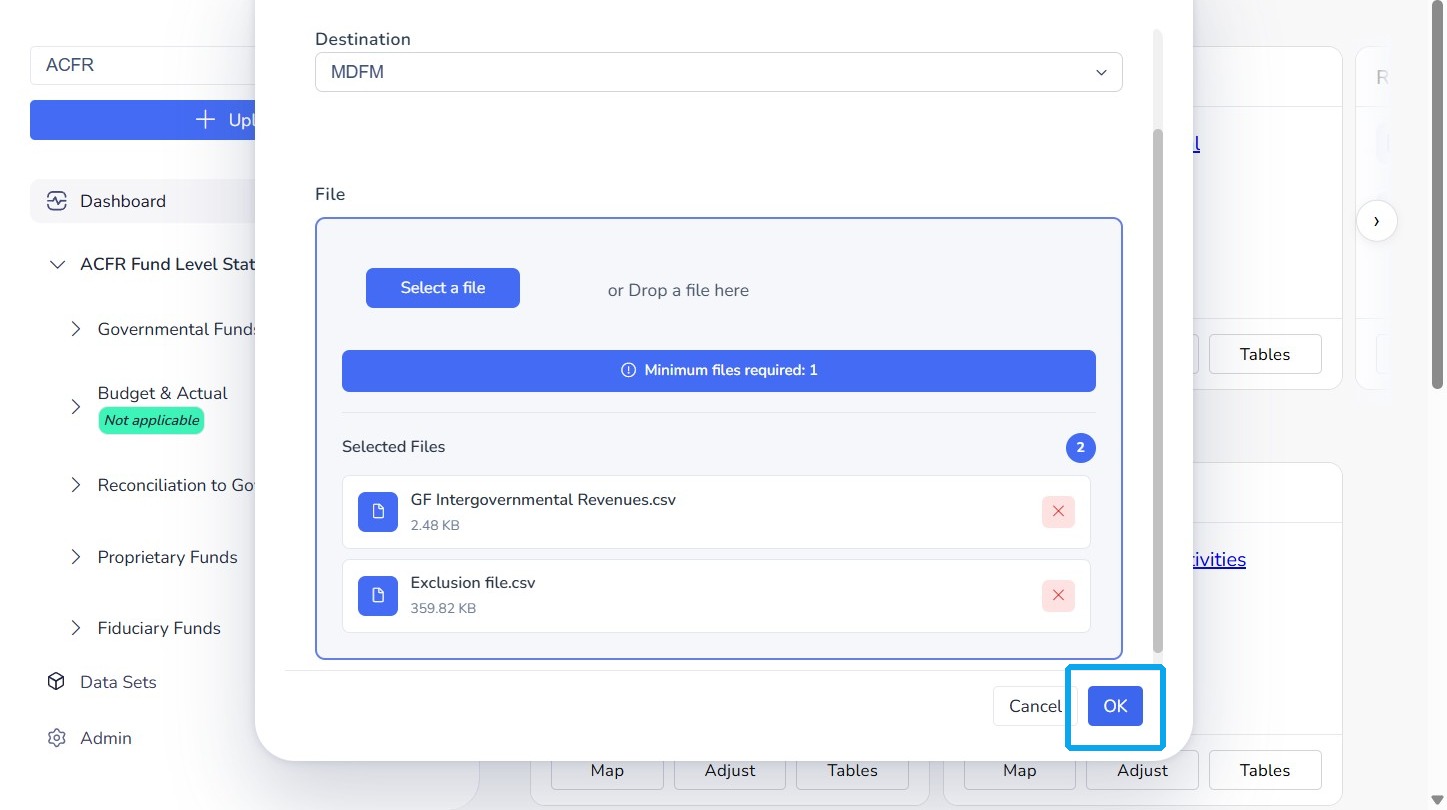
7. Click "OK" when complete.
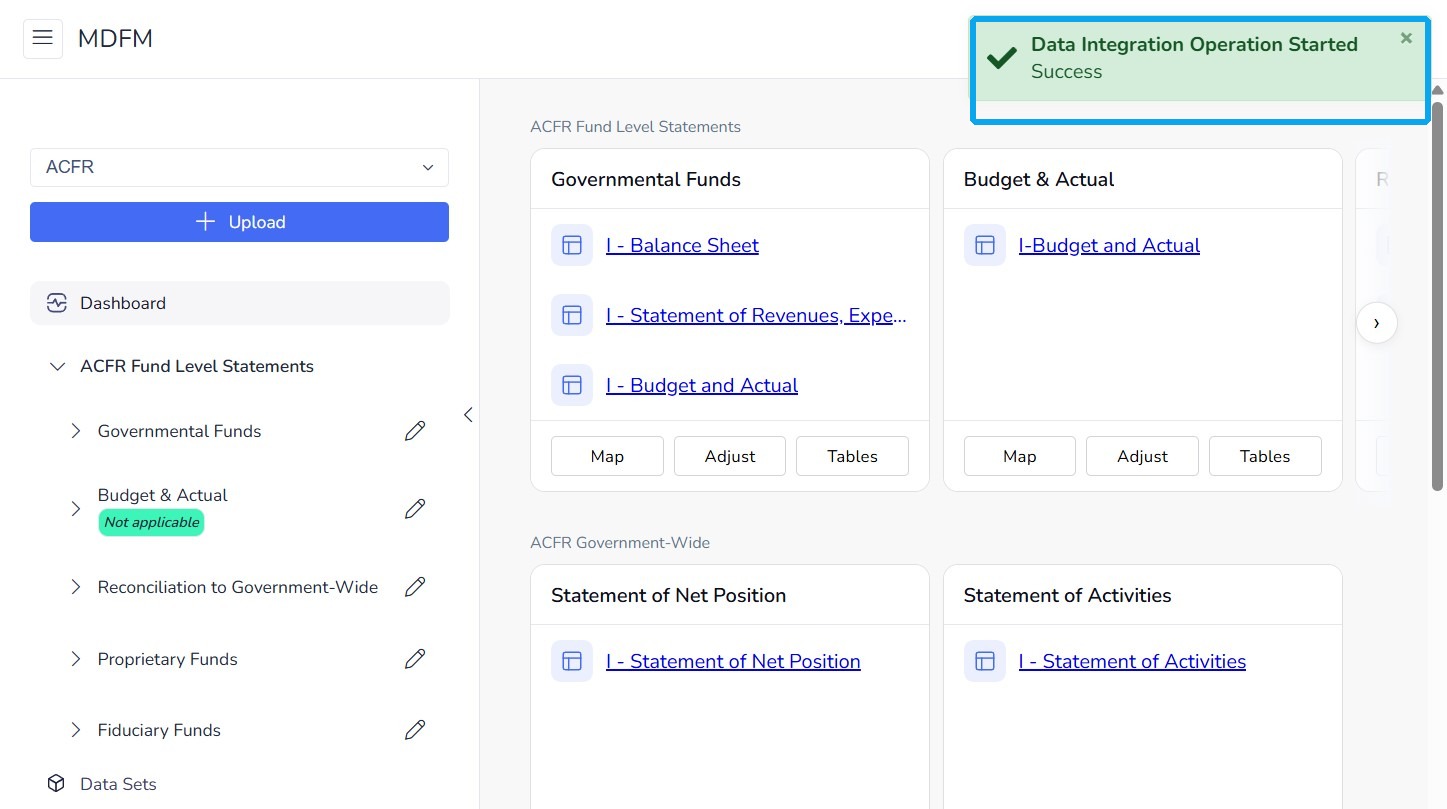
8. You will see a green success box in the top right-hand corner letting you know that you have successfully started to upload your files.
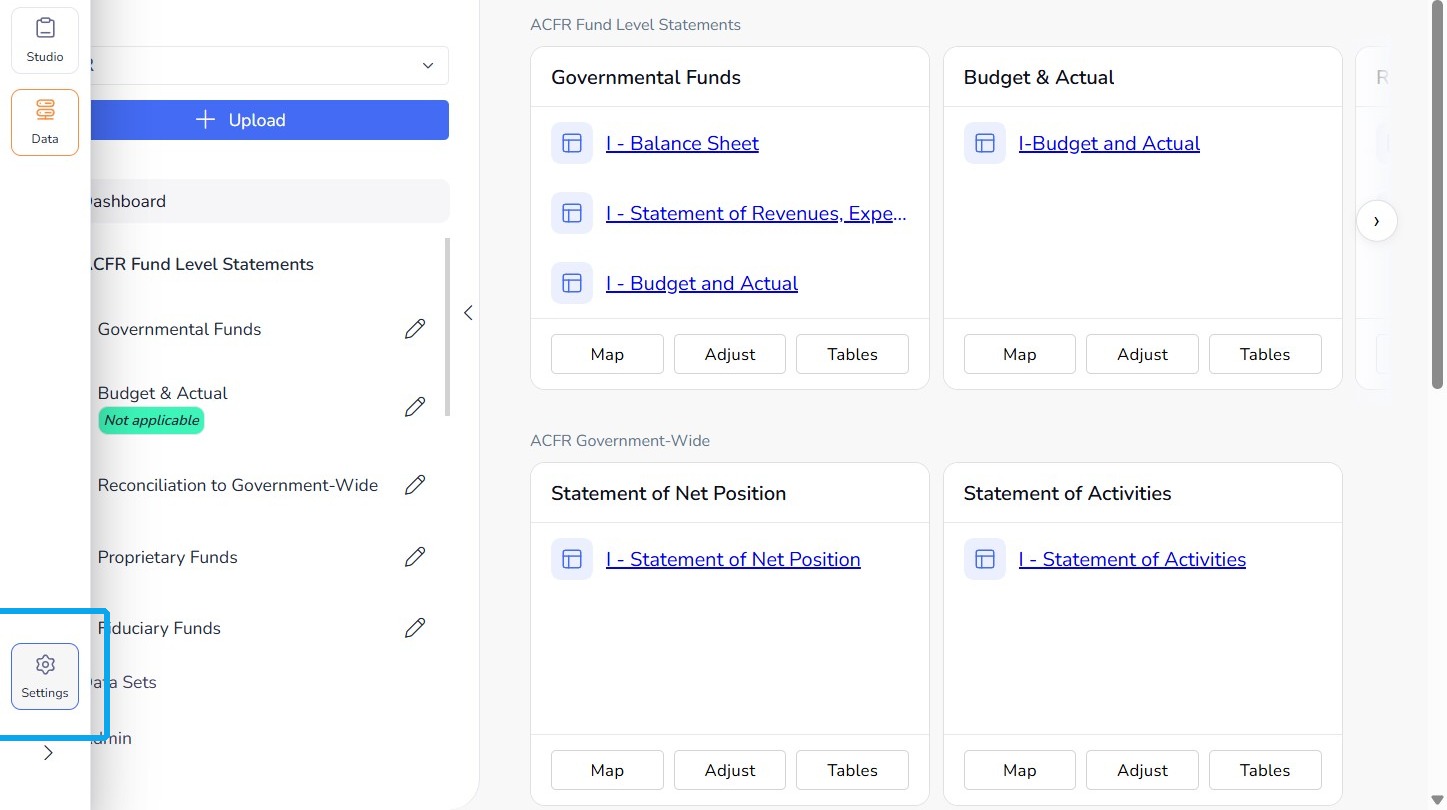
9. To check the status of your upload, navigate to settings in the global navigation panel to the left.
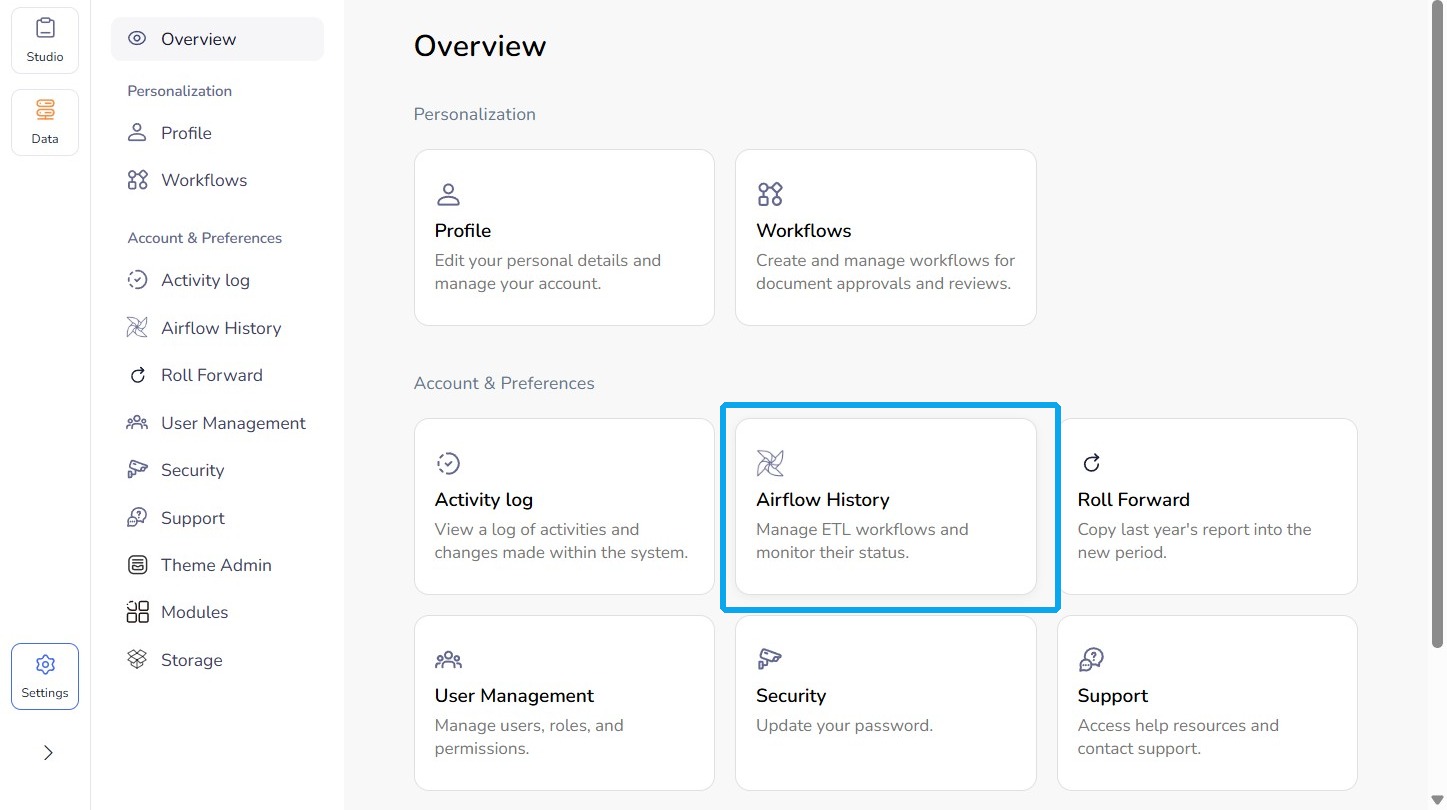
10. Select "Airflow History".
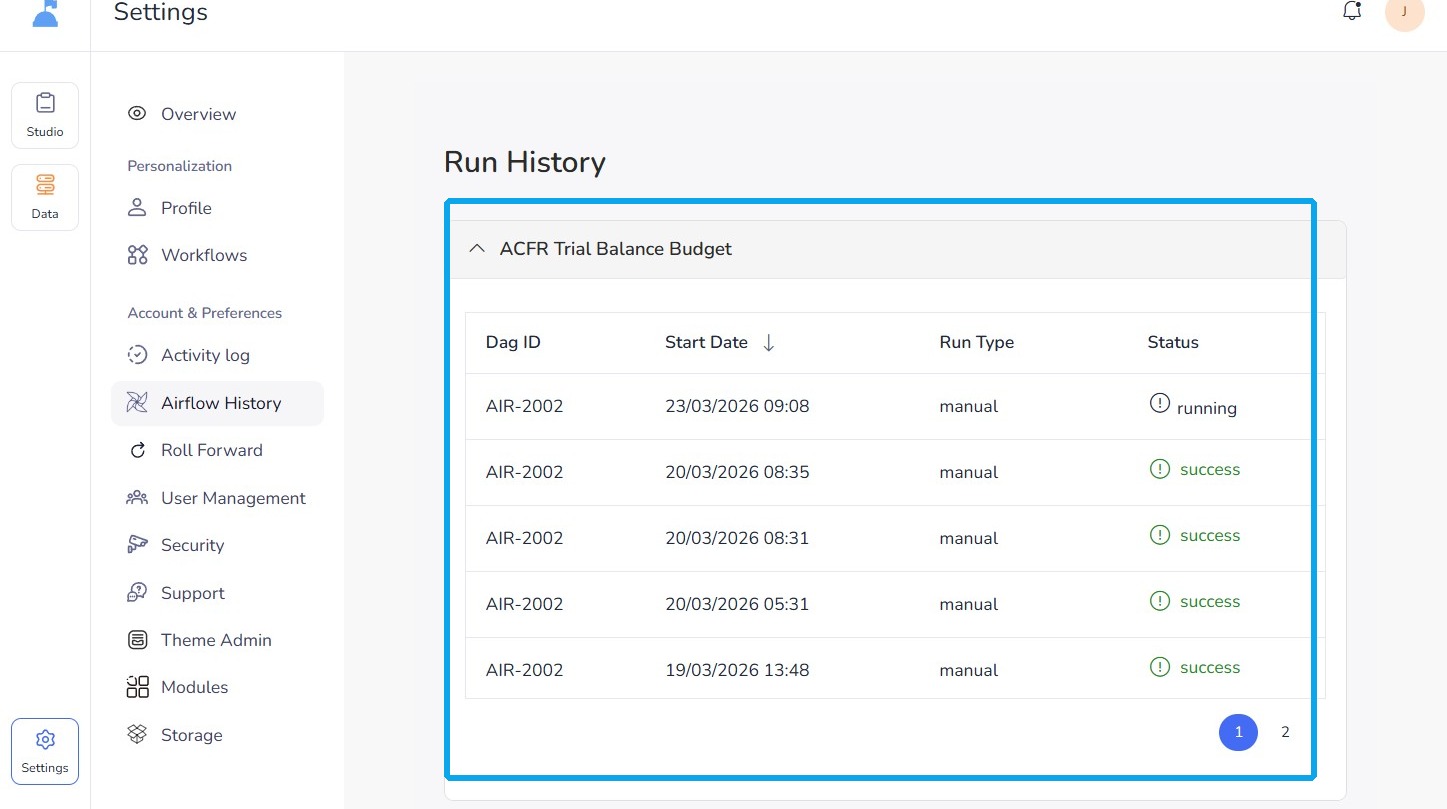
11. In this menu, you will see the status of your most recent upload and all past uploads.
Have more questions or need assistance?
Submit a Request