Check out the latest product updates in ClearGov's Budget Cycle Management suite.
Operational Budgeting
- Change Budget Name
- Fund Name Displayed on Budget Dashboard
- New Sub-line Item Functionality
- Report Builder Customizations
Digital Budget Book
- New Chart Settings for Show/Hide Functionality
- New ‘Table Settings’ Button in Table Editor
- Clone Pages
- Best Practices Checklist Changes
- Option to Remove Image from Department Pages
- Edit Panel Titles on Capital Improvements Pages
- PDF Email Receipts
- PDF Layout is now Standard Letter Size
- PDF Enhancements for Displaying Tables
Operational Budgeting
Change Budget Name
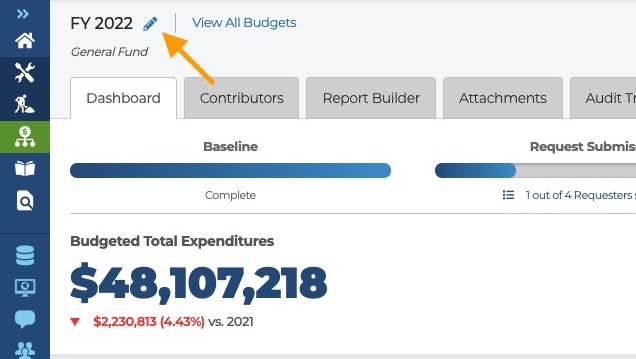
Users can now change the name of their operational budget by simply editing the name from the budget dashboard. A new edit icon appears next to the budget name to select and edit the name.
Fund Name Displayed on Budget Dashboard
The Fund name now displays on the budget dashboard, under the budget name, to make it easy for users to identify which fund the budget is for - this is especially useful for users that have many funds.
New Sub-line Item Functionality
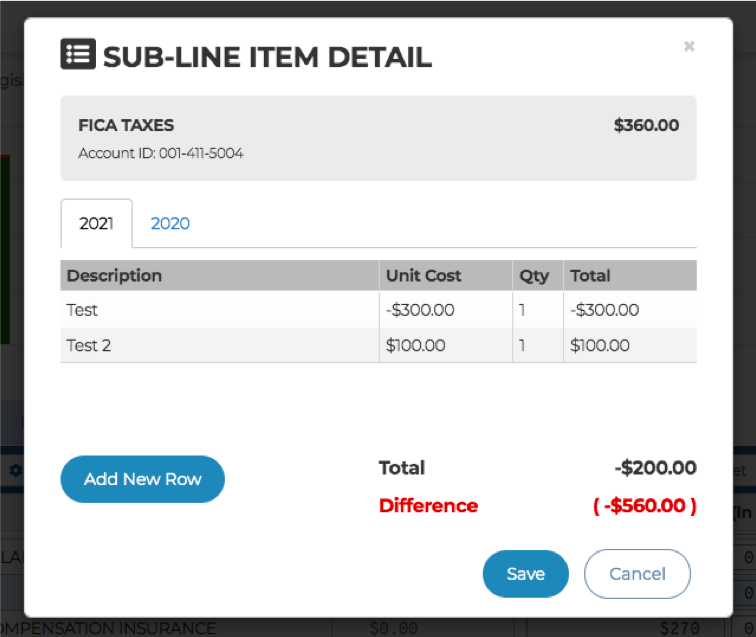
- Colored Sub-line Item Icons: The line item table has been updated to make it easier to scan for discrepancies between sub-line item detail and a line item’s total. The color of the sub-line item icon will change if the sub-line item totals match or do not match the amount of the line item.
- Red: the sub-line item detail does not match the line item total
- Green: the sub-line item detail does match the line item total
- Blue: there are no sub-line items

- Negative Sub-line Items: Users can now include negative amounts in sub-line item details.
Report Builder Customizations
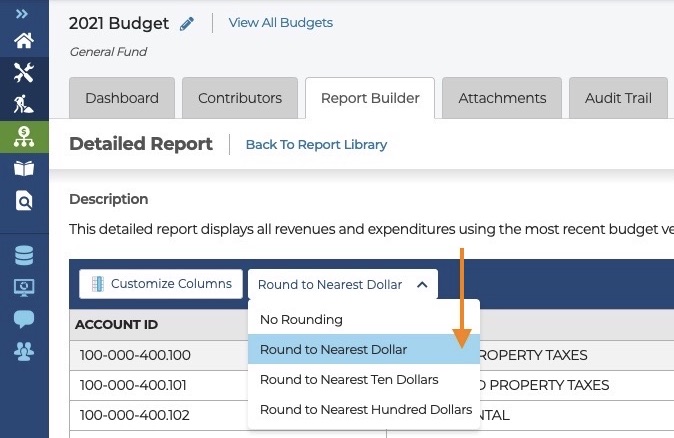
- Round to the Nearest Dollar: The option to round to the nearest dollar is now available in the Report Builder.
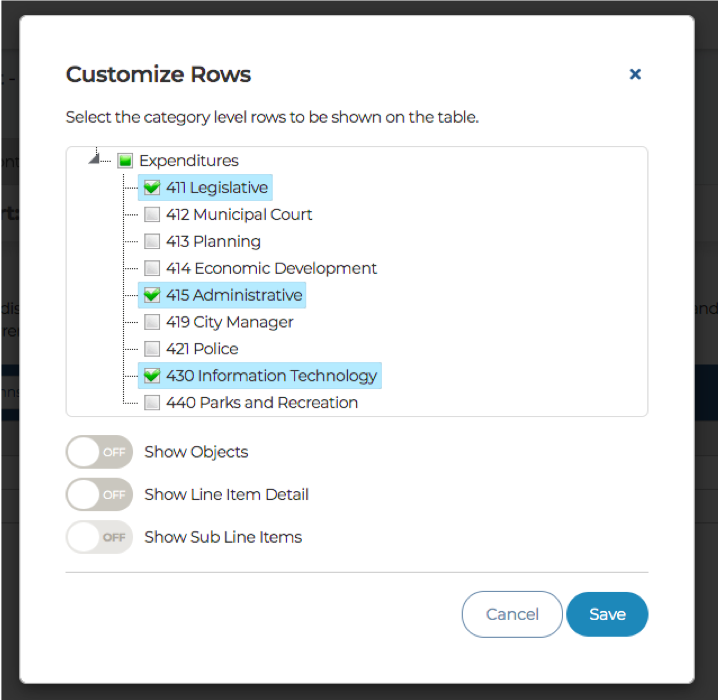
- Customize Rows: Users can now customize rows in the Report Builder to choose which budget categories to include in their export.
Digital Budget Book
New Chart Settings for Show/Hide Functionality
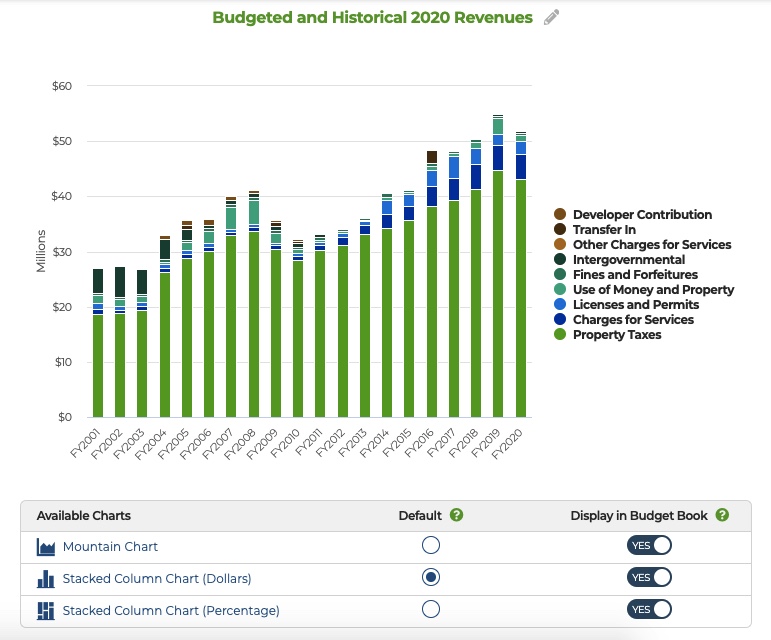
The show/hide settings for charts have been updated to make it easier to manage - and understand with clarity - where charts are being displayed. The show/hide icon (eyeball icon) has been removed and new chart settings are now available under each auto-generated chart. Users can:
- Set the default chart type to display in the budget book
- Choose which charts they'd like to display in the budget book
- Click on each available chart type to see how it will display
New ‘Table Settings’ Button in Table Editor
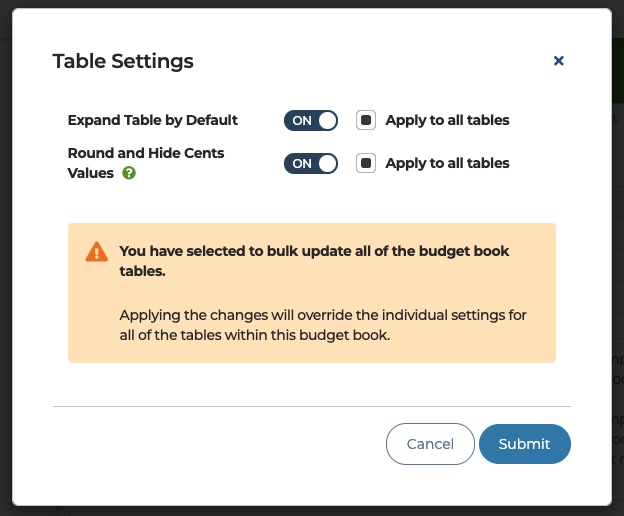
A new ‘Table Settings’ button is available in the table editor.
- The ‘Expand Table by Default’ option is now located in the table settings. Users can also choose to apply this setting to all tables within their budget book.
- A new ‘Round and Hide Cents Values’ option will round values in the table to the nearest dollar and hide the cents. Rounding to the nearest dollar allows users to fit more data in the printed version of their budget book. Users can also choose to apply this setting to all tables within their budget book.
Clone Pages
Users can now clone Department pages, Fund Summary pages, and Funding Source pages by clicking the ‘clone’ action located at the top of the page.
- Cloning a page will clone all settings, panels, images, charts, and table settings to a new page where the information can be customized.

Best Practices Checklist Changes
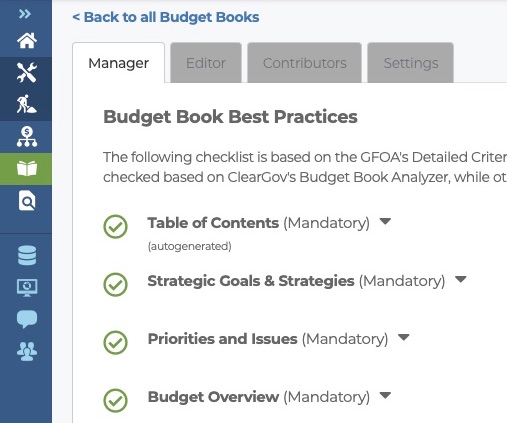
The Best Practices checklist in the Digital Budget Book Manager has been updated to reflect recent changes to the GFOA Distinguished Budget Presentation Awards Program criteria.
- A ‘mandatory’ label has been added next to criteria that are now mandatory in the award criteria.
- Two criteria were removed from the list:
- Short-term Organization Factors
- Impact of Capital Investments on Operating Budget
Option to Remove Image from Department Pages
Users can now remove the image they set for the Department pages by selecting the trash icon next to the image. Previously, this image could only be replaced with a new one.
Edit Panel Titles on Capital Improvements Pages
Users can edit the panel titles on their Capital Improvements pages to customize the name of the One-year Plan or Multi-year Plan panel title.
- ‘Capital Improvements: One-year Plan’ panel title is now editable.
- ‘Capital Improvements: Multi-year Plan’ panel title is now editable.
- Panel titles that show department requests are not editable.

PDF Email Receipts
When sending a Digital Budget Book to print for the PDF version, users will now receive an email confirmation. This email confirms that the request was received and provides the user with an expected timeframe for receiving the PDF.
PDF Layout is now Standard Letter Size
When viewing a PDF in print preview or receiving the PDF via email, the PDF will now be in standard letter size - consistent with the North American standard - to make this easier to view and print.
PDF Enhancements for Displaying Tables
Enhancements were made to the PDF creation process that will create page breaks when necessary so tables display better and aren’t cut between pages.
Click here to watch a short video walkthrough of some of these product updates.
Have more questions or need assistance?
Submit a Request