Check out the latest product updates in ClearGov's Budget Cycle Management suite.
Digital Budget Book
- Add or Remove a Column From All Tables
- Display More Recent Data in Demographics Pages
- Page Break Option in Table Settings
- Display ERP Codes in Table Editor
- Maximize Option in Text Editor
- Page Break Option in Text Editor
- Left Hand Navigation Fixed to Page
- Navigation Enhancements
- Secondary Navigation
- Version Options in Settings
- Display all Debt Years
- Display Notes at Parent Level in Table Editors
- Dynamic Figures - Option to Select Budget Data/Actual Data and Versions
- Dynamic Figures - Auto Update Year to Year
- Tooltip Help Icons
Operational Budgeting
- Display Current Year Actuals
- Display Multiple Versions
Capital Budgeting & Capital Budgeting Lite
- Default Forms Available in Archived Forms
Digital Budget Book
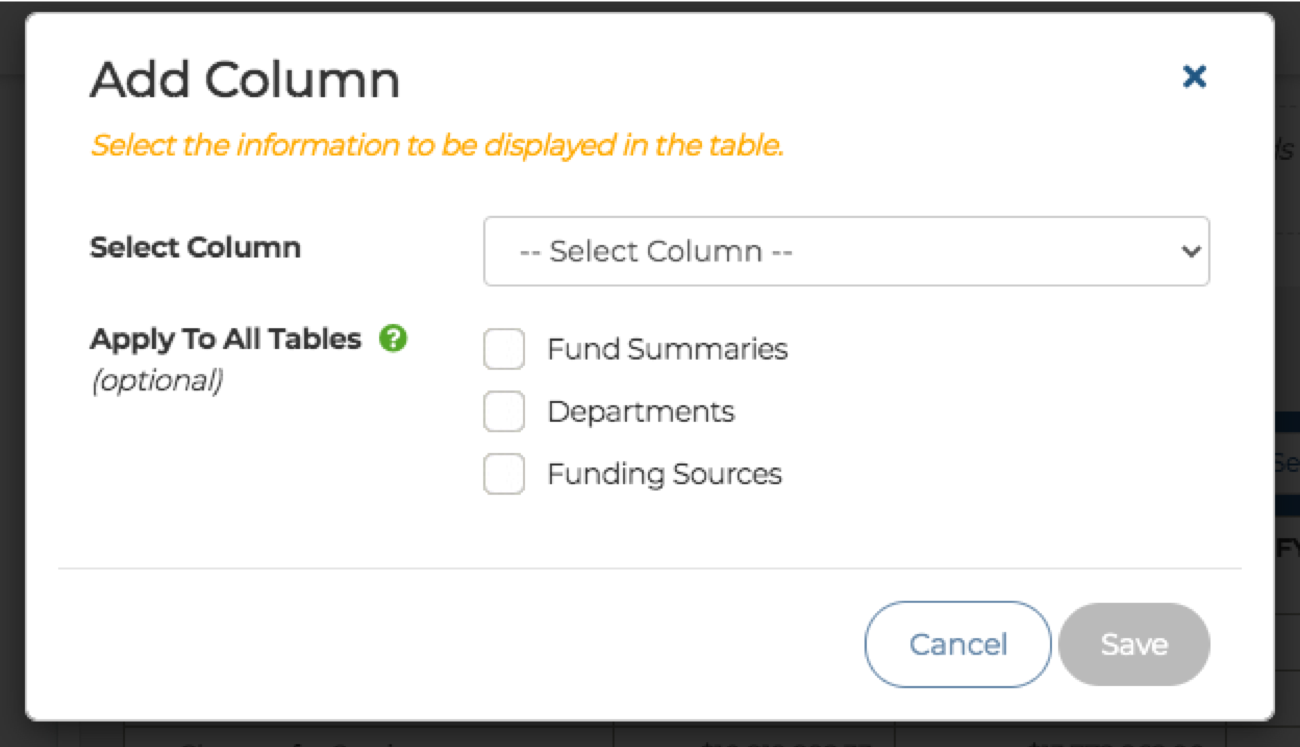
Add or Remove a Column From All Tables
Users can now add or remove any applicable column in a table editor and apply this change to that table only, or all tables throughout their budget book - making it easy to update many tables at once.
- To add a column, select the ‘Add Column’ button and then choose to apply that column change to tables across Departments, Fund Summary and/or Funding Sources pages.
- To remove a column, select the hamburger icon (icon with three horizontal lines) in the top right of the column and select ‘Remove Column’. Users will then be promoted with the same options to apply the change to that table only or to other tables across the budget book.
Display More Recent Data in Demographics Pages
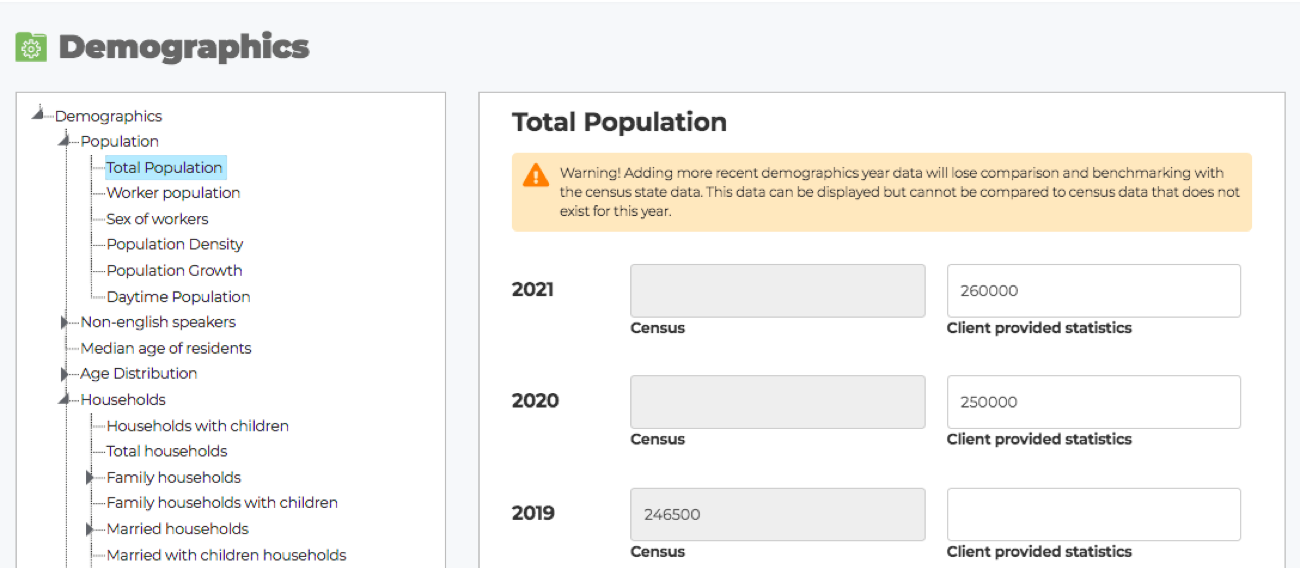
Demographics pages now allow users to enter more recent data for their municipality. Previously, users had to rely on the most recent census data for demographics.
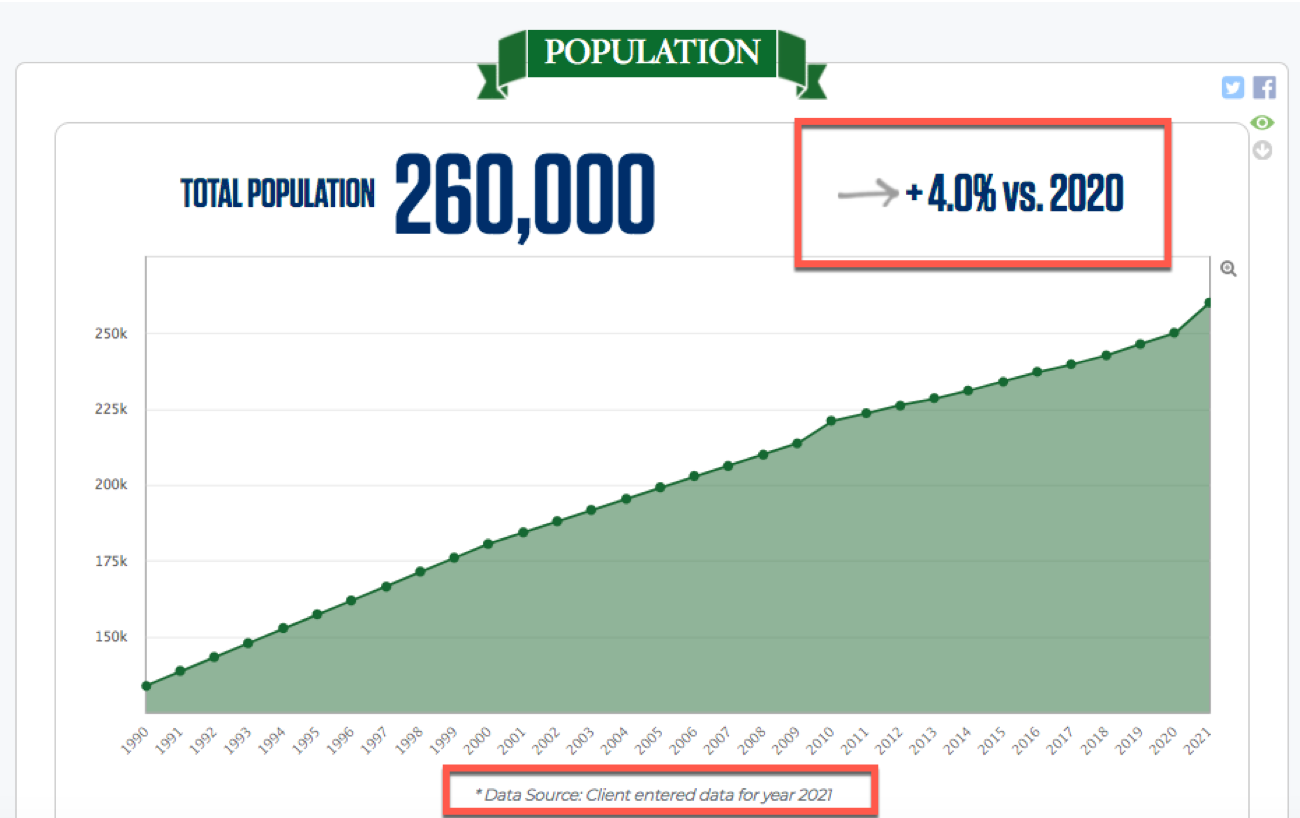
- Each panel will show the most recent year data for that particular demographic data point.
- Users can add new years and data within the Demographics section of the Data module.
- Footnotes for each panel will indicate if the data is coming from the census or client added data.
- This change will be reflected in the Digital Budget Book Demographics page as well as the Transparency Demographics pages.
- NOTE: Entering newer data may cause users to lose comparative data if there are no other municipalities in the area with the same year of data. For example, if 2021 population data is added but the rest of the area only has 2019 Census population data, the page would lose that comparison data point.
Page Break Option in Table Settings
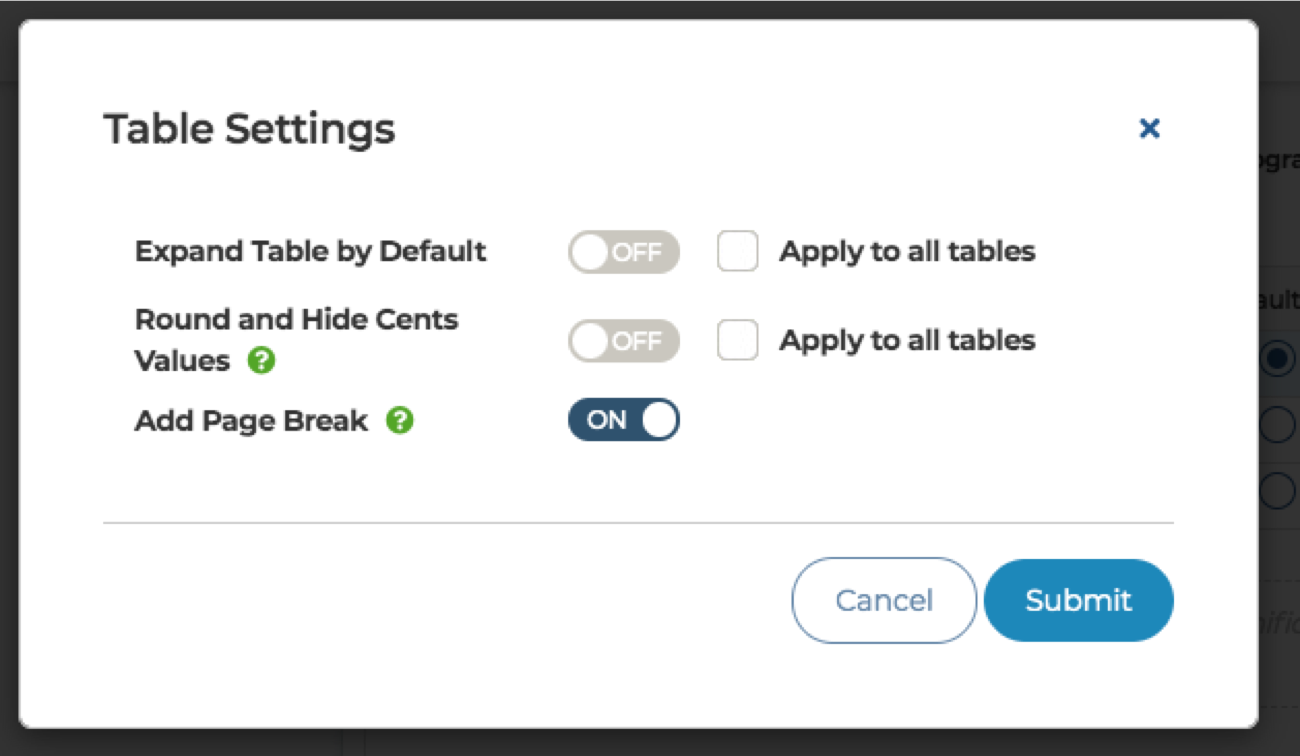
When creating or editing a budget book, users can now add a page break within the settings of a particular table to improve the format of the PDF version of the budget book.
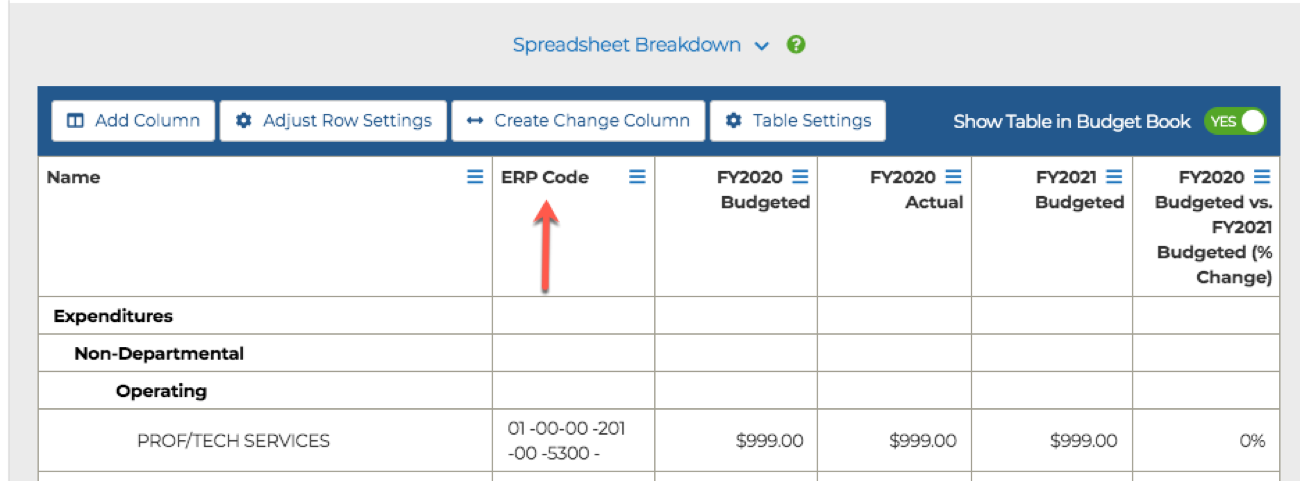
Display ERP Codes in Table Editor
Users with shorter ERP codes instead of standard account codes can now display them in their budget book by selecting the ERP code as a column in the table editor of the budget book.
- Note: only ERP codes that were added for you by the ClearGov team will appear from the list.
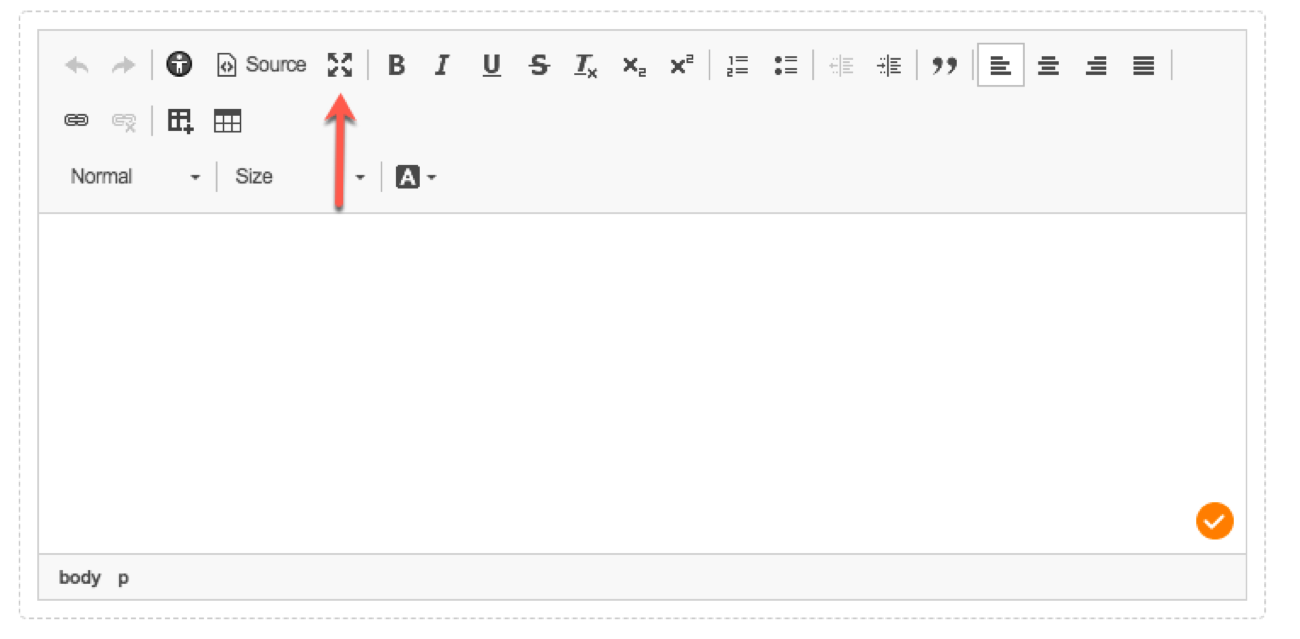
Maximize Option in Text Editor
A maximize option is available in the text editor that creates a full-screen view and keeps the toolbar at the top of the page - giving the user a larger area to enter content while they edit the budget book.
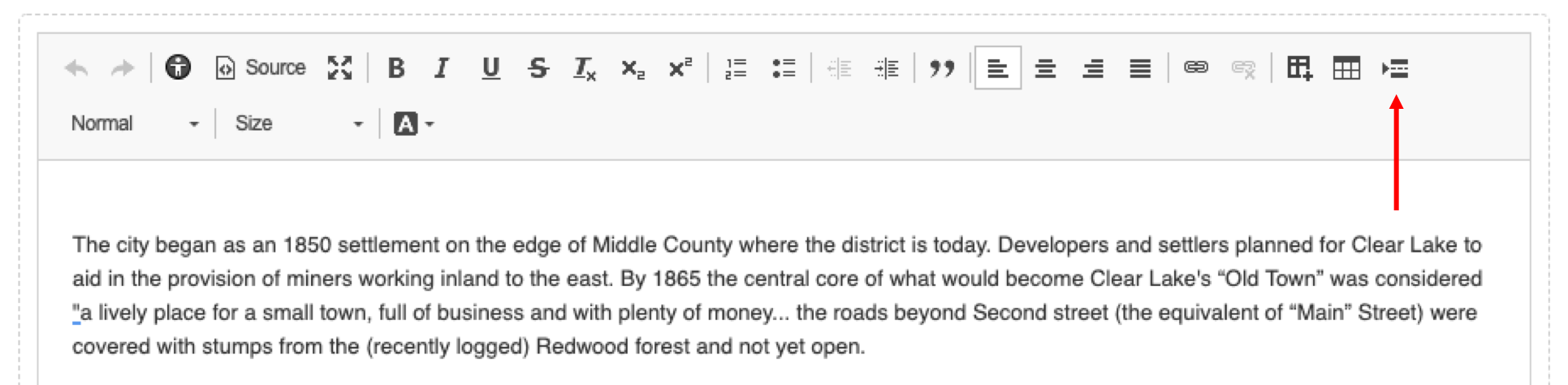
Page Break Option in Text Editor
Users have the option to insert a page break directly into the text editor to apply a page break when generating a PDF. This is helpful for formatting longer content that spans across multiple pages of the PDF.
Left Hand Navigation Fixed to Page
The left-hand navigation now stays with the user as they scroll down the screen. Previously, the navigation would disappear from view as the user scrolled down the page. This enhancement makes it easier for users to know what page they're on and makes navigating different pages more convenient.
Navigation Enhancements
Enhancements have been made to the navigation to make it easier for users to see which section they're in and page they're on.
- Only one page section will be open at a time to keep the navigation organized. Clicking on a new section will automatically close the previously opened section.
- The open section will be highlighted to make it clear where the user is in the navigation.
New Secondary Navigation
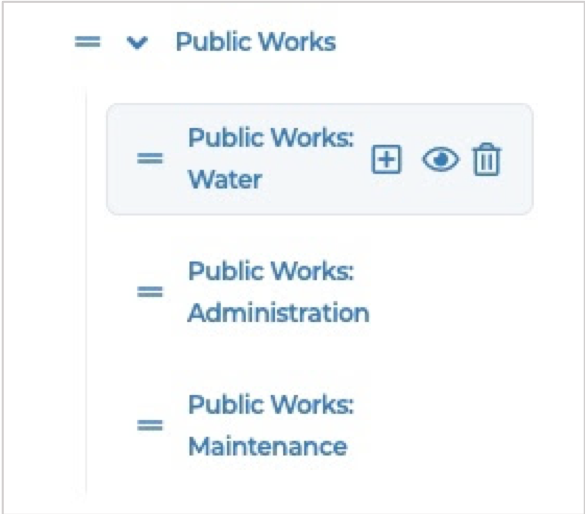
We’ve updated the navigation to create a secondary navigation in each section of the budget book to help users see a hierarchy within the budget book. For example, different departments within Public Works can be nested under “Public Works” in the secondary navigation.
- Users can drag and drop pages within a section to adjust the order of the pages and what section they're in.
- Users can hide a parent page within their budget book so that it is not visible to the public and it will hide all of the pages within that section.
Version Options in Settings
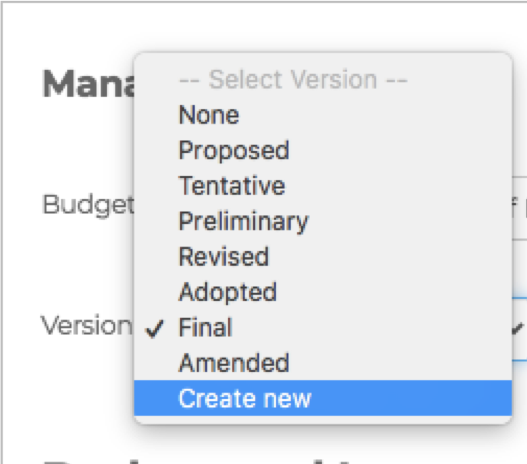
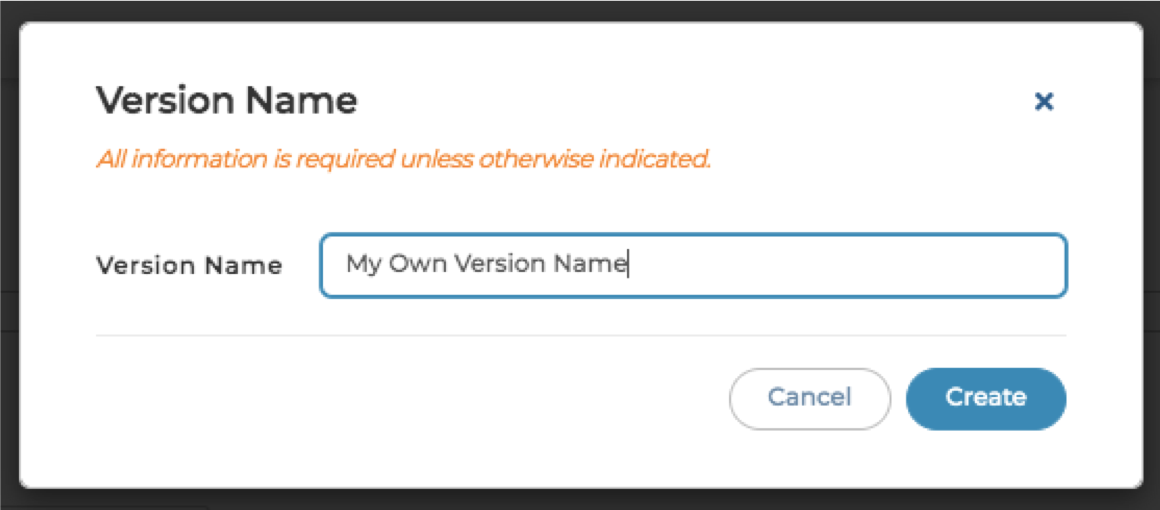
Within the budget book settings, new options are in the Manage Headers section that lists versions to select, as well as provides users with the ability to create their own options to meet their needs and nomenclature.
Display all Debt Years
Users can now enter future year debt data to be displayed in their budget book. Previously, only debt data from the Debt module for the current year of the budget book and all prior years were displayed.
- It does not matter what years of financial data are selected in the settings tab of the budget book. Whatever years were entered in the Debt module will be displayed.
- Charts will display all years worth of data.
- Table editors will still create and display debt data for the current year of the budget book and the prior year of debt data.
- There will still be a current year and prior year percentage comparison column. This will still be the only comparison column.
- Users will be able to add columns to the table for all years of debt data.
Display Notes at Parent Level in Table Editors
Previously, if users added notes to a line item within Operational Budgeting they had an option to display those notes in table editors within the Digital Budget Book, but notes would not display if they were entered at the parent level - despite being able to add them this way in Operational Budgeting. This has been updated to allow notes to be displayed at the parent level.
Dynamic Figures - Option to Select Budget Data/Actual Data and Versions
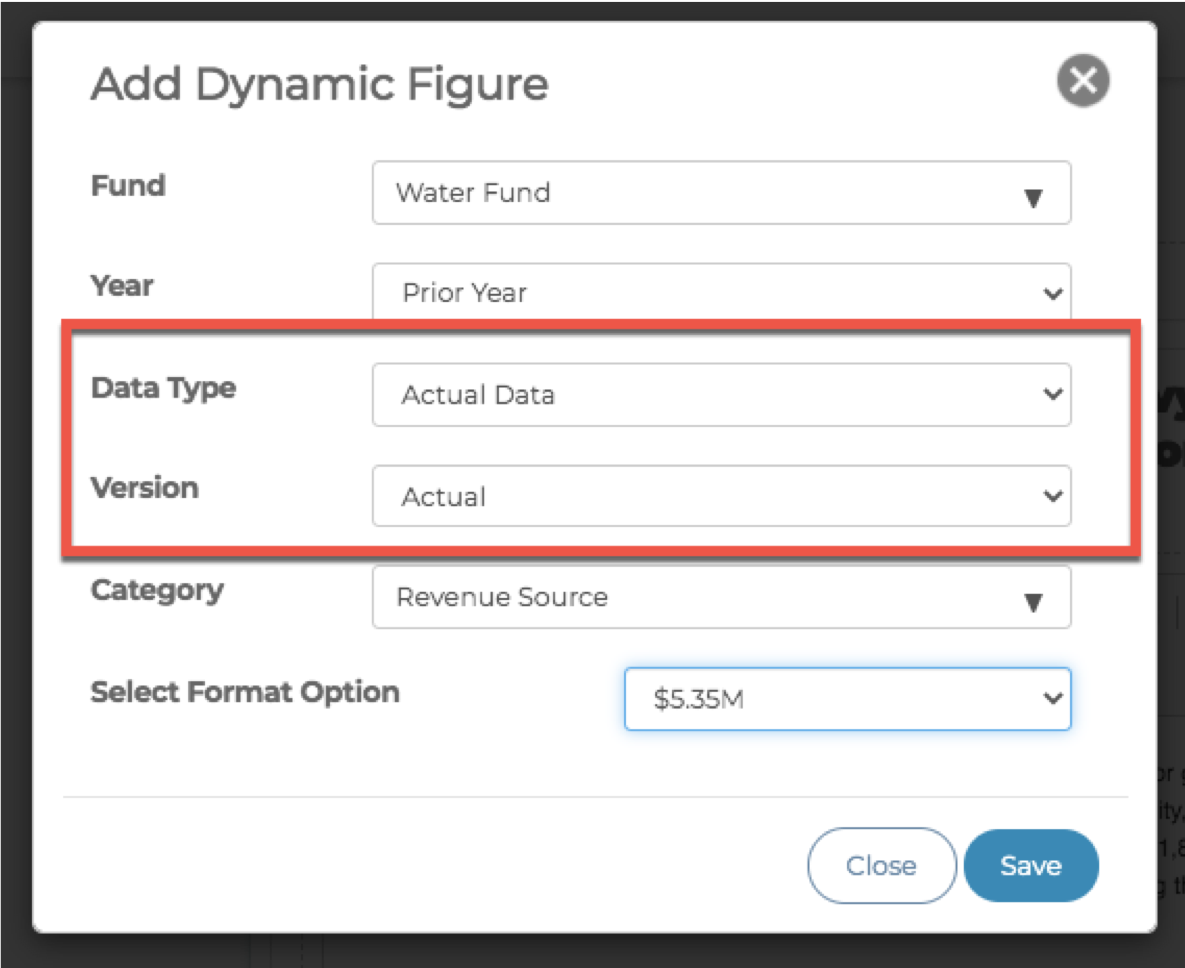
Previously in dynamic figures, users were restricted to what data they could select (Budgeted or Actual) based on the settings selected on the Settings tab. This has been updated to allow the user to select what data type they would like as well as what versions they would like to use.
Dynamic Figures - Auto Update Year to Year
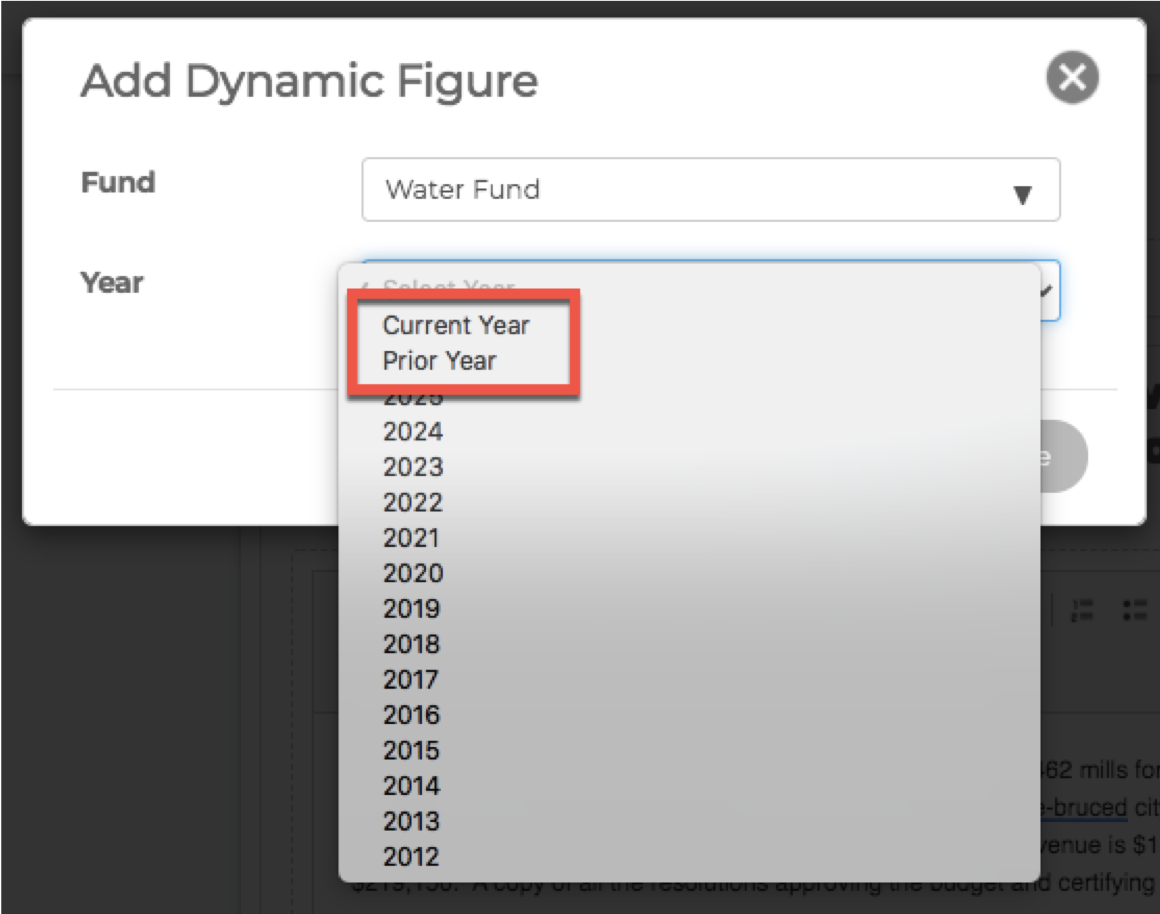
Previously, a specific year would have to be selected when adding dynamic figures. If the user copied their budget book and started a new year, the dynamic figures had to be changed manually each time because a specific year was selected. The modal has been updated with a dropdown option for the ‘Year’ field which allows the user to select ‘Current Year’ or ‘Prior Year’. This allows the dynamic figure to use the new year of the budget book - allowing the figures to automatically update year to year when a budget book is copied.
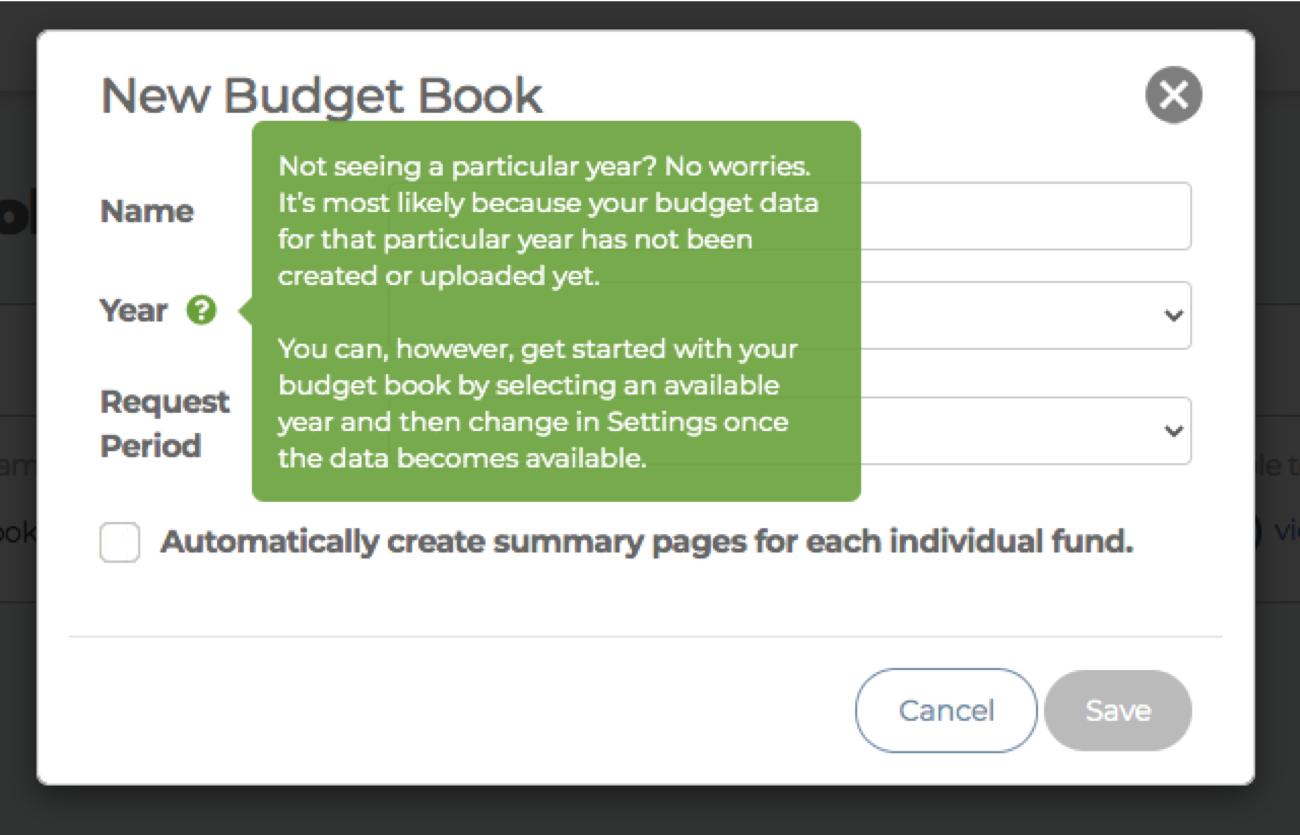
Tooltip Help Icons
We’ve added several tooltip help icons to various parts of the budget book to help users find what they’re looking for and learn new functionality as they navigate the budget book. These tooltips make the experience more user-friendly and direct users where to go to apply settings. Look for the green circle icon with a question mark and hover over it to read the tooltip for the area you’re working in.
Operational Budgeting
Display Current Year Actuals
Users can now display current year actuals in their operational budget. For example, adding FY22 Actuals into the FY22 Budget. That makes it easy to understand the year-to-date actual spend and if they are trending over/under budget.
Display Multiple Versions
Users can now display any version in their operational budget, and multiple versions of the same year. By clicking ‘Customize Display’, users can select any of the versions they’ve provided to the ClearGov team as they will all be listed. These versions can also be exported in the Report Builder.
Capital Budgeting & Capital Budgeting Lite
Default Forms Available in Archived Forms
We created default capital request forms for a variety of different common use cases - they can be customized easily to meet your needs. Users that didn’t previously have access to these default request forms will now see these available in their list of archived forms - allowing them to be accessed and added back to their form library for future use.
Have more questions or need assistance?
Submit a Request